
How to speed up WordPress site without plugin is a common challenge for beginners. A slow website can hurt your rankings, increase bounce rate, and reduce conversions.
In this guide, you’ll learn simple and effective ways to improve your WordPress speed without relying on heavy plugins.
Introduction
If your WordPress website is slow, you’re not alone. A slow-loading site can hurt your rankings, reduce conversions, and frustrate visitors. Websites with a heavy DOM and unoptimized elements like images and videos often experience slower loading times.
The good news is that you don’t always need heavy plugins to fix these issues.
In this beginner-friendly guide, you’ll learn practical and effective ways to speed up your WordPress site without installing extra plugins. These methods focus on performance fundamentals that deliver long-term results. Additionally, I offer a service where I can fully optimize your existing or newly built WordPress website without relying on paid or free plugins.
Why WordPress Speed Matters
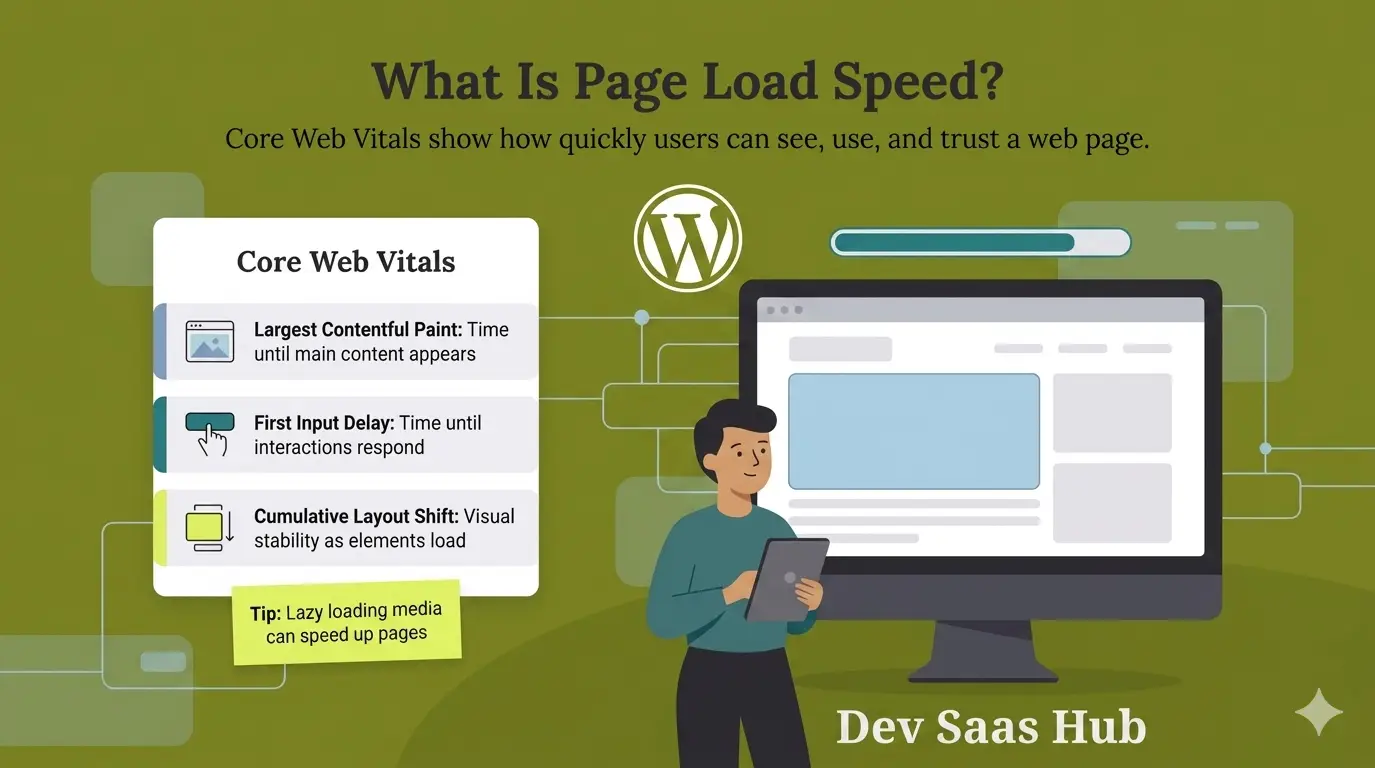
Website speed is not just about user experience—it directly impacts your SEO and revenue. High-performing websites consistently deliver fast loading times and smooth performance across all devices. Website speed matters significantly for both desktop and mobile users.
Key benefits of a fast website:
- Rank higher on Google
- Reduce user frustration
- Lower bounce rates
- Improve overall user experience
- Enable faster navigation and save time
- Increase conversions and user engagement
Google PageSpeed Insights is a powerful tool used to measure your website’s speed and performance. It’s easy to use, and developers or beginners can quickly analyze performance factors and identify areas for improvement.
Google uses page speed as a ranking factor, so optimizing your site’s performance is essential if you want consistent traffic growth and better search visibility.
Common Reasons Your WordPress Site is Slow
Before fixing the problem, you need to understand what causes it.
Here are the most common reasons:
- Low-quality or shared hosting
- Heavy or poorly coded themes
- WordPress site builders with Heavy DOM
- Large, unoptimized images
- Too many external scripts
- Excessive unused plugins
- No caching system
- Installed Similar plugins
Now let’s fix these step by step.
How to Speed Up WordPress Site Without Plugin (Step-by-Step)
7 Ways to Speed Up WordPress Without Plugins
1. Choose Fast and Reliable Hosting
Beginner always ask questions “how to speed up wordpress site without plugin“. Hosting provider is key point where your site is hosted. So hosting provider should be fast, reliable and good for wordpress sites. Your hosting provider plays the biggest role in your website speed.
Cheap or overloaded servers slow everything down, no matter how optimized your site is.
What to do:
- Always search and check hosting reviews
- Select Hosting with WordPress without the complexity
- Use a performance-focused hosting provider
- Avoid extremely cheap shared hosting
- Choose servers closer to your target audience
- Avoid old hosting providers
2. Use a Lightweight Theme
This is one of the most important and critical parts of your website performance. Not all WordPress themes are optimized for speed, so choosing the right theme is essential for long-term success.
Heavy themes that include excessive animations, sliders, and unnecessary features can significantly slow down your website. Large scripts and complex visual effects take longer to load, which directly impacts performance and user experience.
Best practices for choosing a fast WordPress theme:
- Always use lightweight themes such as Astra or GeneratePress
- Avoid multipurpose “all-in-one” themes that include features you don’t need
- Avoid heavy, animation-rich, and overly complex designs
- Choose themes built with native WordPress structure or clean code frameworks
- Prefer performance-focused themes with minimal dependencies
- Always test theme speed using tools like Google PageSpeed Insights before finalizing
A lightweight and well-coded theme lays the foundation for a fast, SEO-friendly website. It ensures better performance, improved rankings, and a smoother experience for your visitors across all devices.
3. Optimize Images Before Uploading
Images are one of the biggest reasons for slow-loading websites. Uploading unoptimized images can significantly reduce your site’s performance and increase loading time.
Any image you use should be properly optimized in terms of size and dimensions. It should fit the required space of your layout without being unnecessarily large. This is a fundamental practice, as uploading high-resolution images directly from your phone or design tools can drastically slow down your website.
What to do:
- Resize images before uploading them to WordPress
- Avoid extremely large dimensions (e.g., 9000 × 8000 pixels)
- Use scalable formats like SVG where appropriate
- Use modern image formats such as WebP
- Keep image file sizes under 100–200 KB whenever possible
- Compress images using proper optimization techniques before uploading
Proper image optimization improves page speed, enhances user experience, and contributes positively to your SEO rankings.
4. Enable Server-Level Caching
Its very important to enable the cache. Even without plugins, many hosting providers offer built-in caching. Caching plays an important role in speed performance it reduces load time by creating static files.
Caching stores a static version of your site, making it load faster for users.
What to do:
- Enable caching from your hosting dashboard
- Use LiteSpeed or server cache if available
- Set cache lifetime to 10 hours
5. Reduce External Scripts and Requests
Every external script such as fonts, analytics tools, and advertising trackers adds extra load time to your website. These scripts take time to load and can negatively impact performance. In particular, tools like Google Tag Manager or Meta Pixel tracking scripts can significantly reduce page speed if not optimized properly.
When your website makes too many external requests, it can slow down overall performance and increase loading time noticeably.
Common examples of external scripts include:
- Google Fonts
- Tracking scripts
- Embedded videos
- Social media embeds such as Reddit content
- Third-party plugins that load external resources
What you should do:
- Limit the use of unnecessary external scripts
- Use system fonts instead of external font libraries whenever possible
- Avoid embedding too many third-party tools on a single page
- Reduce the number of plugins that load external resources
- Regularly audit your website to identify and remove unused scripts
6. Use a CDN (Content Delivery Network)
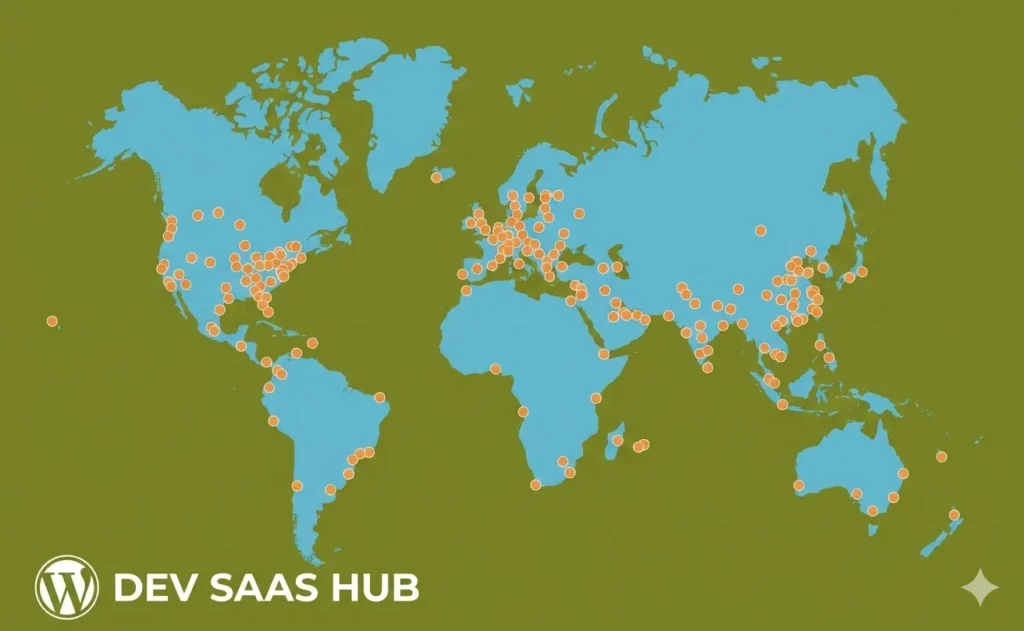
This is the point where using a CDN (Content Delivery Network) becomes essential. A CDN stores cached copies of your website on multiple servers around the world, allowing your content to be delivered from the location closest to the user.
This setup can significantly improve your website’s speed and overall performance. If you want faster loading times, enabling a CDN is highly recommended.
There are several tools and services that support CDN integration, including Cloudflare, WP-Optimize, and WP Rocket.
A CDN ensures that users can access your website from the nearest server location, reducing latency and improving load times.
Popular option:
- Cloudflare (the free plan is a great starting point)
Benefits of using a CDN:
- Faster global content delivery
- Improved website performance
- Reduced load on your hosting server
- Reduced load on your hosting server
Implementing a CDN is a smart step toward building a faster, more reliable, and scalable WordPress website.
7. Keep WordPress Core, Themes, and Plugins Updated
Always keep your website up to date. An outdated website can become slow, vulnerable to attacks, and less effective overall. Regular maintenance of your themes, plugins, and core files is essential for maintaining performance, security, and SEO.
It’s a best practice to review and update your site every 2–3 weeks to keep it optimized and search engine–friendly. You should also check your PHP version regularly and ensure it meets the latest requirements of WordPress. Running outdated software can lead to slower performance and potential compatibility issues.
What you should do:
- Regularly update your WordPress core
- Monitor the “Updates” section in your dashboard for pending changes
- Keep all themes updated to the latest version
- Remove unused or inactive plugins
- Configure basic security measures to prevent vulnerabilities and attacks
Keeping your website updated not only improves speed and performance but also protects it from security risks and ensures long-term stability.
A 50-Minute WordPress Speed Tune-Up You Can Do Today
You can significantly improve your WordPress site speed in just 50 minutes by focusing on the most impactful performance fixes.
1. First 10 minutes: Update everything
Update your WordPress core, PHP version, theme, and plugins. Keeping everything up to date improves performance, security, and compatibility.
2. Next 10 minutes: Enable caching
Activate a caching system with browser cache and compression enabled. This helps reduce server load and speeds up page delivery.
3. Next 10 minutes: Optimize images
Bulk convert your largest images to modern formats like WebP and resize them to appropriate dimensions. This alone can drastically reduce page weight.
4. Next 10 minutes: Improve loading behavior
Enable lazy loading for images and videos, and delay non-critical scripts so they don’t block initial page rendering.
5. Next 5 minutes: Use a CDN
Connect a basic Content Delivery Network (CDN) to serve your content faster to users across different locations and improve global load times.
6. Final 5 minutes: Clean up your site
Remove database junk, spam revisions, and deactivate unused plugins to reduce unnecessary overhead.
After completing the optimization, always test your site again—especially on mobile devices. Your Largest Contentful Paint (LCP) should improve, and scrolling should feel much smoother on mid-range smartphones.
If something breaks after enabling minification or optimization, exclude the conflicting file and test again. Focus on fixing one issue at a time rather than applying everything blindly. The process of optimization matters more than any single tweak.
Final Thoughts
Speed optimization doesn’t always require installing multiple plugins.
By focusing on hosting, images, theme, and structure, you can significantly improve your WordPress performance without adding extra load.
Start with these simple steps, and you’ll notice a faster, smoother website that performs better in search engines.
Check our latest tutorials on WordPress optimization

